
 五度妙笔
五度妙笔 企业透视镜
企业透视镜 API商城
API商城
 数据库
数据库HeyGen Review: I Cloned Myself Into a Scary Real AI Avatar
Raise your hand if you’ve ever sat staring at a blank screen, struggling to
make a video
that looks professional, only to realize you don’t have the budget, crew, or time.
Luckily, you’re far from alone. For many small business owners and creators,
budget is one of the biggest barriers
to consistently producing high‑quality videos.
That’s exactly the gap
HeyGen
was built to fill. It lets you generate realistic
talking avatars
,
translate your videos into 175+ languages
, and even create a digital clone of yourself: no camera, no crew, no editing experience required.
In this HeyGen review, I’ll discuss the pros and cons, what it is, who it’s best for, and its key features. Then, I’ll show you how I used it to generate and edit a video from a
text prompt
and clone myself into an AI avatar.
I’ll finish the article by comparing
HeyGen
with my top three alternatives (
Synthesys
,
Deepbrain
, and
Synthesia
). If you’ve been putting off video content because it felt out of reach, HeyGen might be the tool that finally changes that.
Verdict
HeyGen
is a powerful and user-friendly AI video platform that creates realistic avatars that speak 175+ languages with high-quality output, saving time and production costs. However, its pricing, occasional rendering delays, and ethical concerns around avatar realism and transparency may be drawbacks for some people.
Pros
User-friendly interface (no editing skills or equipment needed)
Realistic AI avatars with natural lip-sync
High-quality 1080p/4K output
Supports 175+ languages with AI dubbing
Saves time and money compared to traditional video production
Includes templates, voice cloning, and integrations (like ChatGPT, Zapier)
Versatile for marketing, training, sales demos, and personalized content
Create a digital clone of yourself for videos that look and sound like you
Strict content rules for ethical, legal, and brand safety
Cons
Small creators may find HeyGen expensive
Slow rendering, especially for long videos or peak times
Occasional awkward lip-sync or unnatural avatar movements
Questions on ethics around using AI avatars for content that imitates real people
What is HeyGen?
HeyGen
is among the most powerful
AI video generators
, creating realistic talking avatars and videos from text, images, or audio. It simplifies video production by eliminating the need for cameras, crews, or editing skills.
Output Quality
HeyGen’s
output quality is excellent: 1080p and 4K-resolution videos with realistic AI avatars, and
humanlike voiceovers
that speak
175+ languages and dialects
. I’ve generated multiple videos with HeyGen, and the finished results consistently look great with accurate lip-syncing.
Trusted by 100,000+ Teams
HeyGen
is trusted by over 100,000 teams worldwide, including some
major global companies
across marketing, e-learning, sales, and learning & development departments.
In other words, HeyGen’s users aren’t just solo creators. Successful businesses are using it for onboarding videos, training content, and
customer communications
.
Mission
What makes
HeyGen
stand out is its mission. It helps every creator get their voice heard through
storytelling technology
.
HeyGen is not built for video editors. It’s built for the teacher who has a lesson to share, the marketer with a deadline, and the small business owner who has no budget for a production crew.
I’ve tried lots of AI tools
, and HeyGen delivers on what it promises. If you’ve been putting off video content because it felt too difficult or expensive, this tool will change your mind.
Who is HeyGen Best For?
HeyGen
is best for individuals and teams that need fast, polished video without a traditional production setup:
Marketers
can use HeyGen for ad creatives, product explainers, and multilingual campaigns.
Educators
and trainers can use HeyGen for lesson videos and onboarding.
Sales and
customer success teams
can use HeyGen for personalized outreach or customer communication videos.
Small businesses and creators can use HeyGen to create professional videos quickly, with little technical overhead.
HeyGen Key Features
HeyGen
provides AI tools for video creation with a focus on avatars:
AI Video Creation
:
Text-to-video
(up to 60s free, 60min Business) with auto-captions; 1080p/4K exports.
AI Avatars & Animation:
1,100+ realistic avatars
; create custom avatars that look and move like you from video/photos;
talking photos
;
face swaps
; tweak gestures, clothing, expressions, and backgrounds in the
AI Studio
.
Voice & Audio:
AI voice cloning
;
translations
/
dubbing
in 175+ languages.
Assets & Templates:
700+ video templates
; royalty-free images, videos, and elements.
Automation & Integrations
: ChatGPT, HubSpot, Zapier, Vimeo.
Advanced Tools:
Avatar IV API
,
motion designer
(animated text, visuals, concept illustrations),
real-time streaming avatars
.
Collaboration: Team editing tools, faster video creation.
Screen Recording
: Upload or capture screen, webcam, and audio.
Script Assistance:
AI script generator
for video topics.
How to Use HeyGen
Here’s how I used
HeyGen
to generate and edit a video from a text prompt and cloned myself into an AI avatar:
Sign Up for HeyGen
Generate from a Prompt
Generate a Prompt Idea
Chat & Plan a Video
Explore the Video Outline
Confirm the Outline & Generate
View the Preview
Edit Scenes with AI
Generate & View the Edited Video
Make Edits in the AI Studio
Turn Yourself into an AI Avatar
Upload or Record Yourself
Create Avatar
Use the Avatar in a Video
Step 1: Sign Up for HeyGen
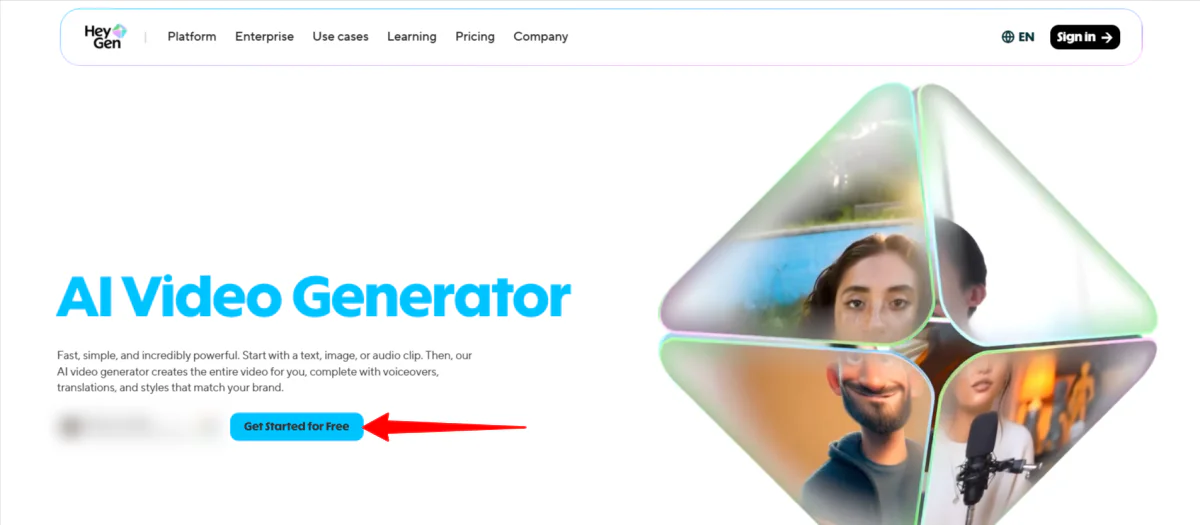
I started by going to
and selecting “Get Started for Free.”
Step 2: Generate from a Prompt
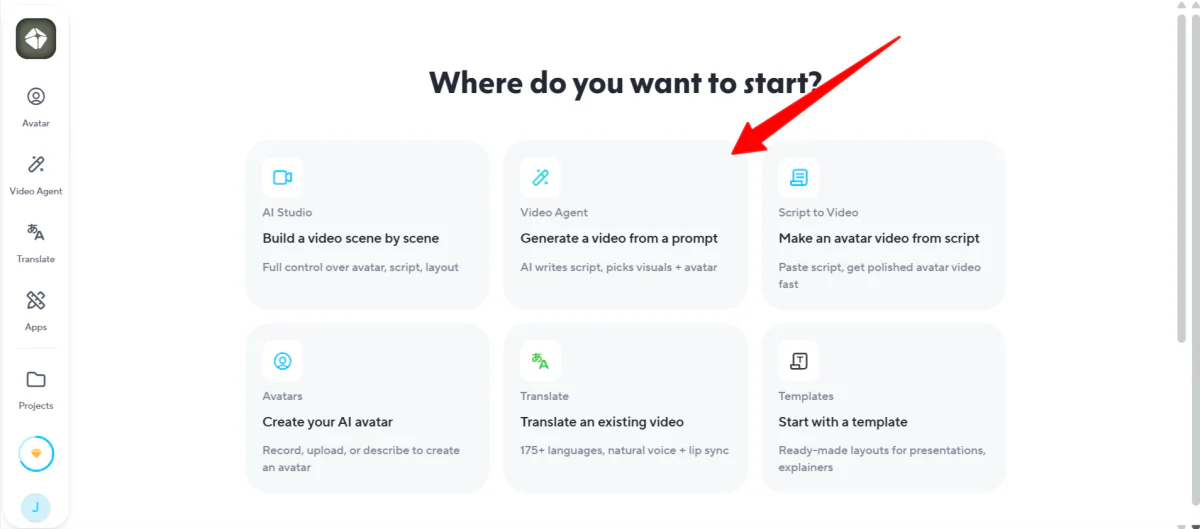
Next,
HeyGen
asked me where I wanted to start:
AI Studio: Build a video scene by scene
Video Agent: Generate a video from a prompt
Script to Video: Make an avatar video from a script
Avatars: Create an AI avatar
Translate: Translate an existing video
Templates: Start with a template
I liked how easy
HeyGen
made it for me to get started. I went with the easiest option: generating a video from a prompt.
Step 3: Generate a Prompt Idea
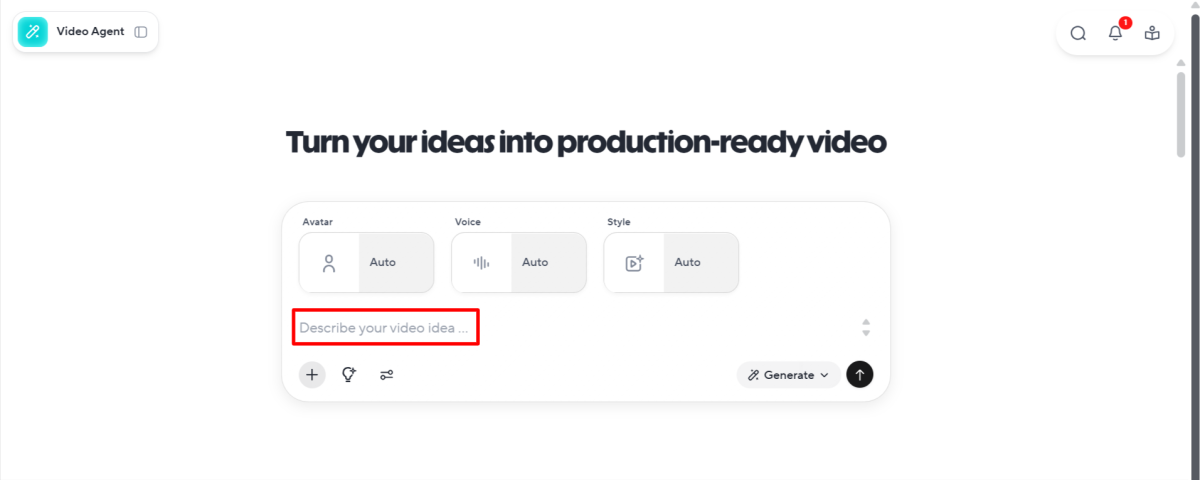
Next,
HeyGen
asked me to describe my video. Rather than coming up with something on the spot, HeyGen offers two ways to help with prompt ideation.
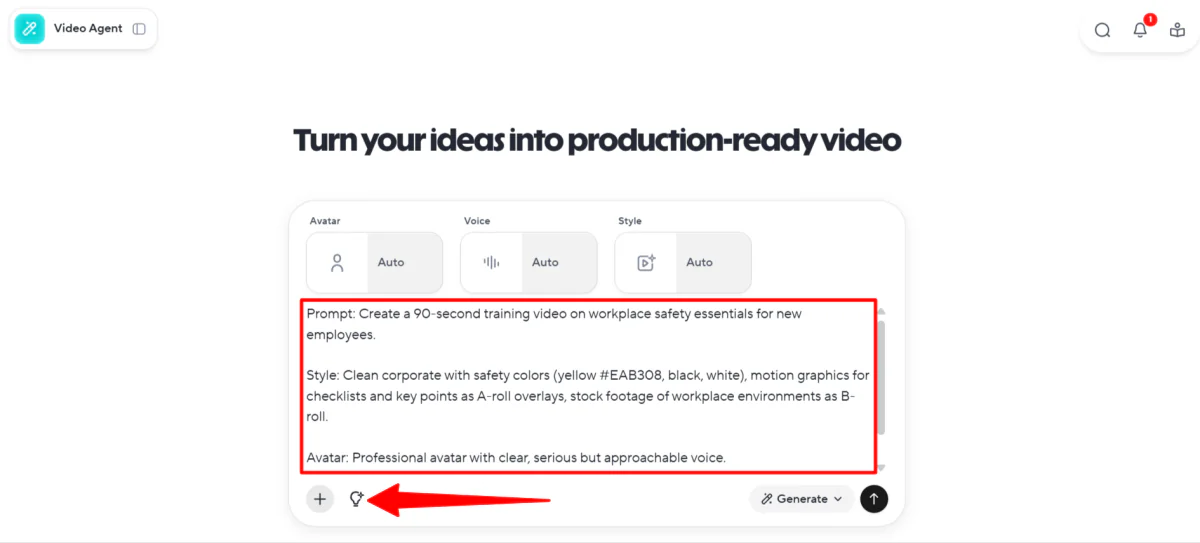
The first method is selecting the lightbulb. It will generate a random prompt including a description of the style, avatar, and music.
Here’s the prompt idea
HeyGen
gave me:
“Prompt: Create a 90-second training video on workplace safety essentials for new employees.
Style: Clean corporate with safety colors (yellow #EAB308, black, white), motion graphics for checklists and key points as A-roll overlays, stock footage of workplace environments as B-roll.
Avatar: Professional avatar with a clear, serious but approachable voice.
Music: Neutral corporate, attentive, and safety-focused.”
If you already have an idea of what you’d like to generate, the structure HeyGen provides is a good starting point for the best results.
Step 4: Chat & Plan a Video
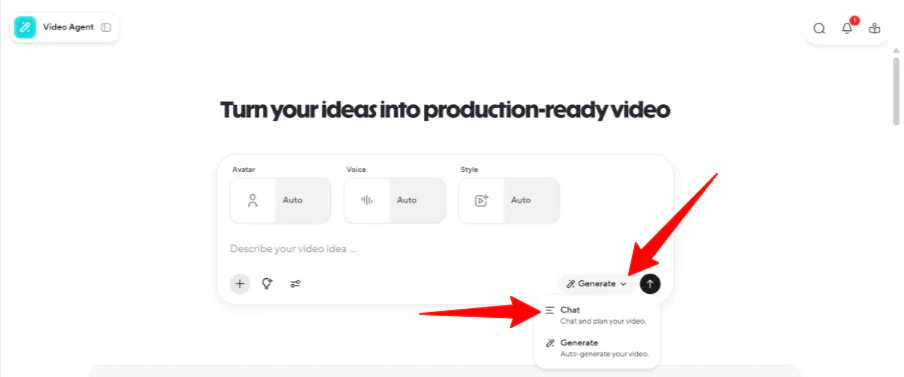
The next method for idea generation with
HeyGen
is to select “Generate,” which reveals the “Chat” option to chat and plan the video.
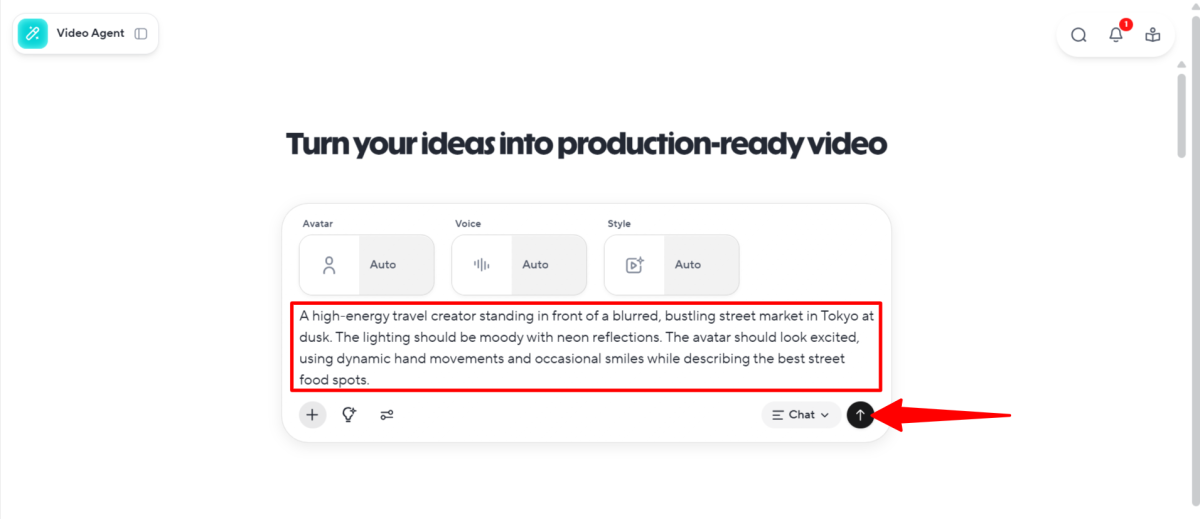
I gave it the following prompt and sent it to start chatting and planning:
“A high-energy travel creator standing in front of a blurred, bustling street market in Tokyo at dusk. The lighting should be moody with neon reflections. The avatar should look excited, using dynamic hand movements and occasional smiles while describing the best street food spots.”
Step 5: Explore the Video Outline
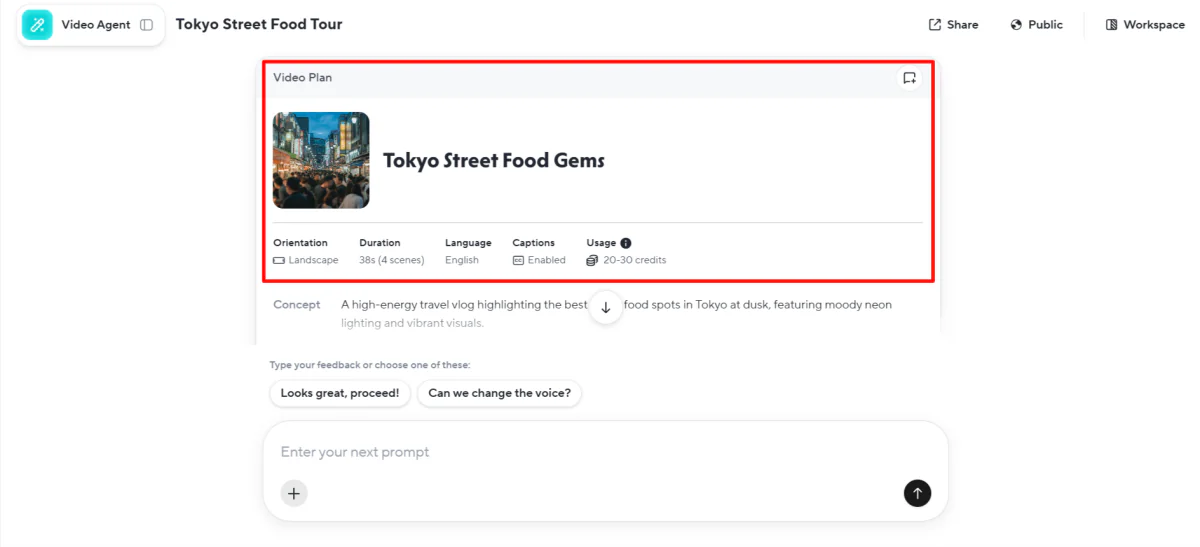
A few seconds later,
HeyGen
put together a plan for my video, including the orientation, duration, language, captions, and usage.
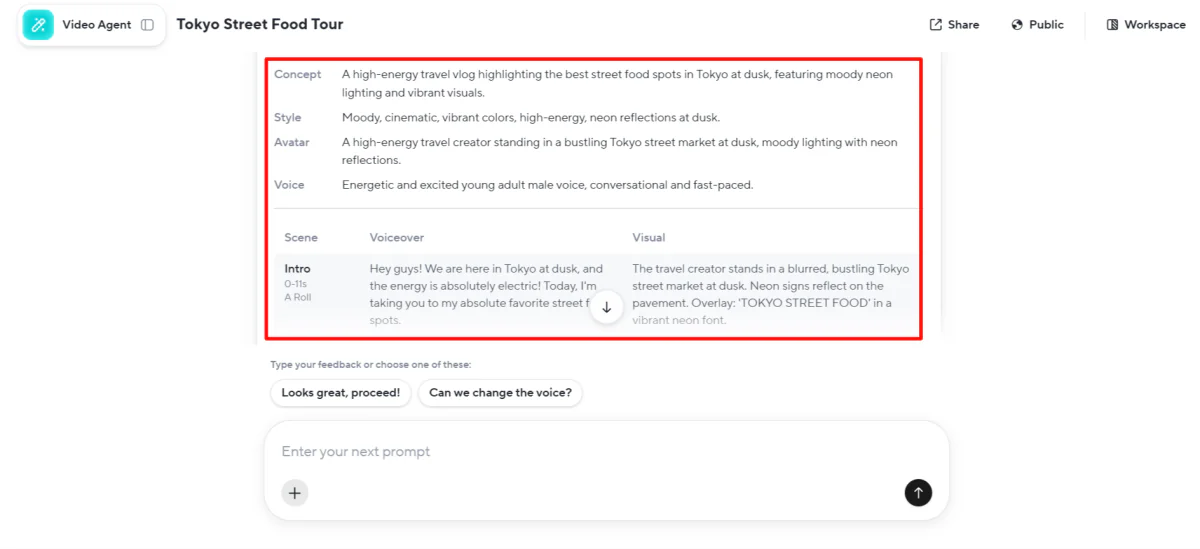
It went even deeper from there, outlining the concept, style, avatar, and voice with each scene, voiceover, and visual.
Step 6: Confirm the Outline & Generate
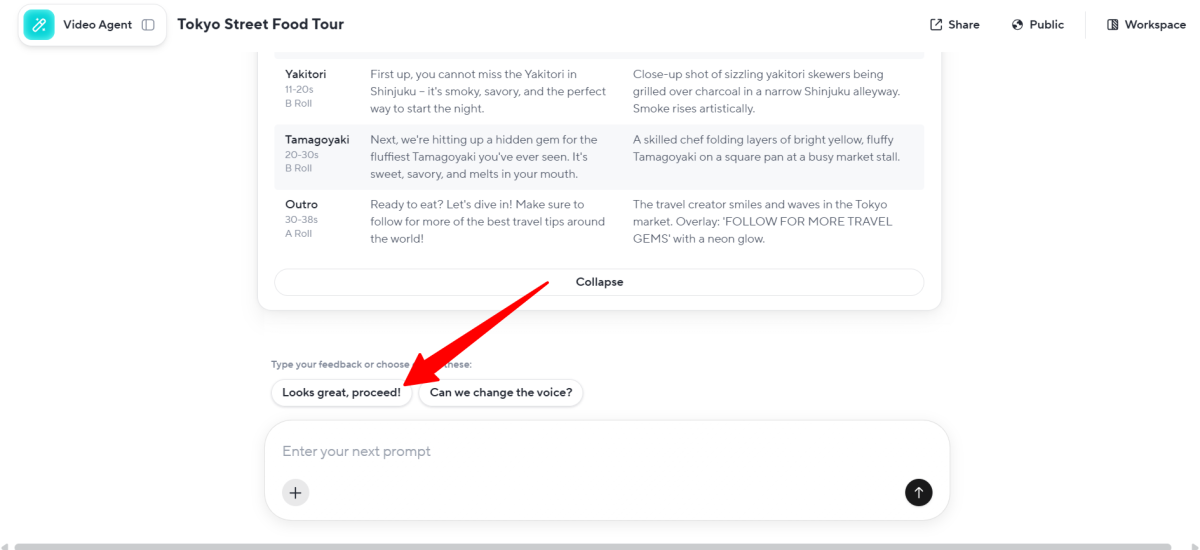
I was happy with the plan HeyGen came up with. I responded with “Looks great, let’s proceed!” but feel free to respond with any changes, and the AI will update them.
Step 7: View the Preview
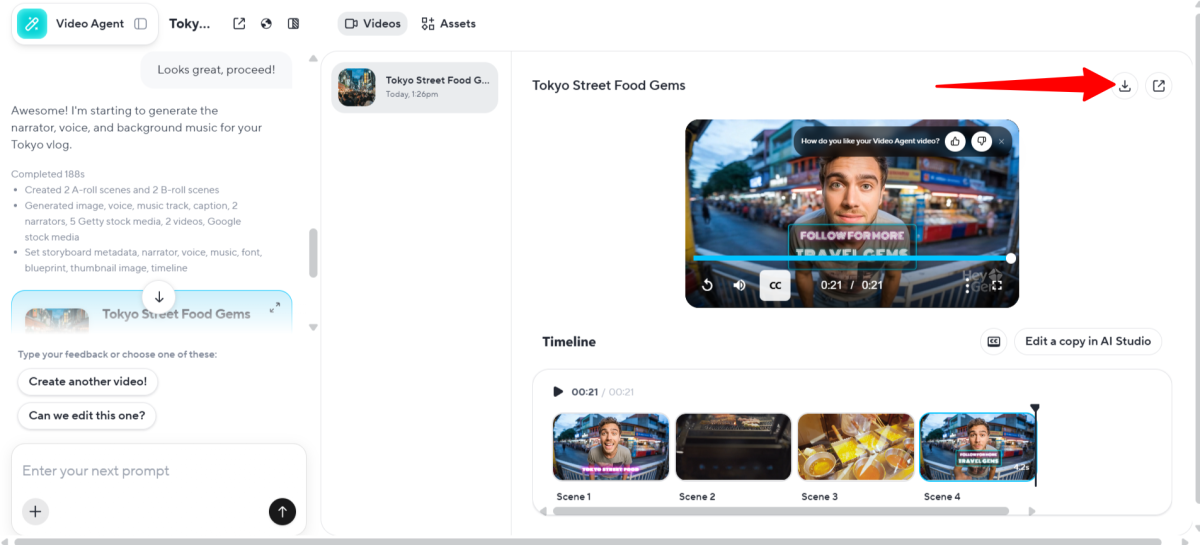
Immediately,
HeyGen
got to work generating each scene.
A few minutes later, my video was complete. Here’s how it came out:
Overall, it did a pretty good job. The avatar fit the look and enthusiasm of a travel food vlogger, the video was high-quality and accurate to my prompt with realistic lip-syncing, and the scenes went together in a way that made sense.
However, it still felt somewhat robotic, so you could tell it was generated with AI. Also, I question the ethics around using AI avatars for content that imitates real people (especially when it could be mistaken for a real human).
While
HeyGen
makes production fast and visually impressive, creators should be mindful of transparency and honesty with their audience.
Step 8: Edit Scenes with AI
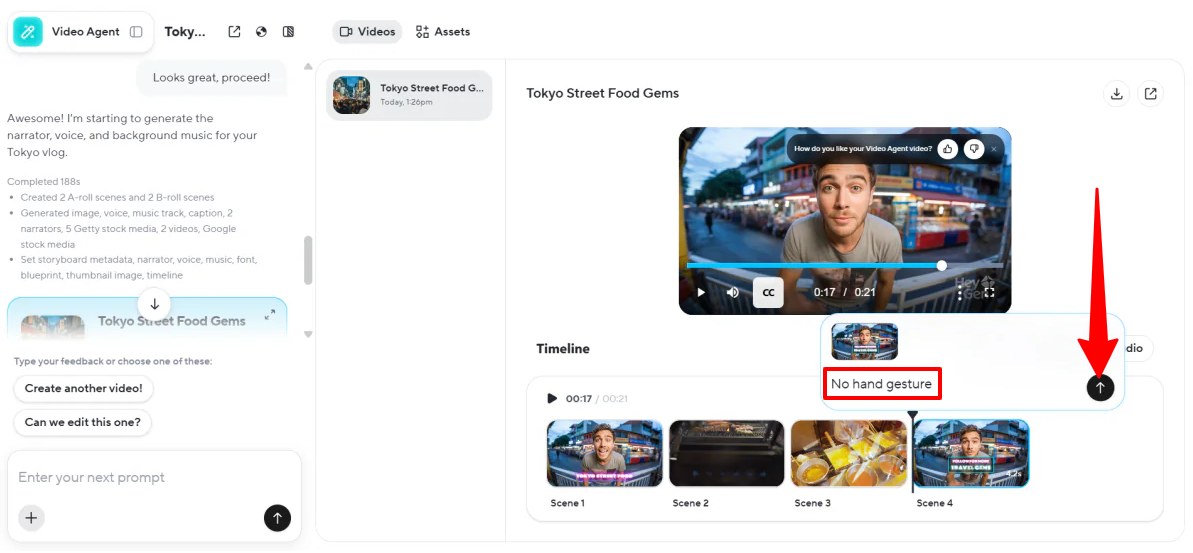
At the bottom was a timeline where I could hover over each scene and edit it individually. A small prompt window appeared, where I could tell the AI specific changes I wanted it to make for that scene.
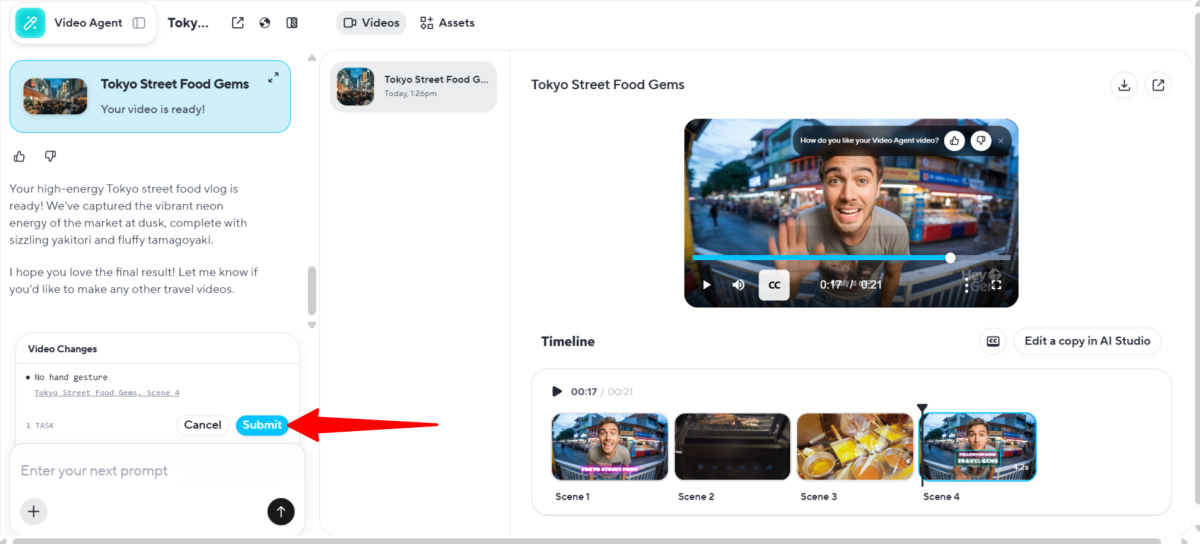
I told the AI I didn’t want the hand gesture and hit “Submit” in the chatbot on the left.
Step 9: Generate & View the Edited Video
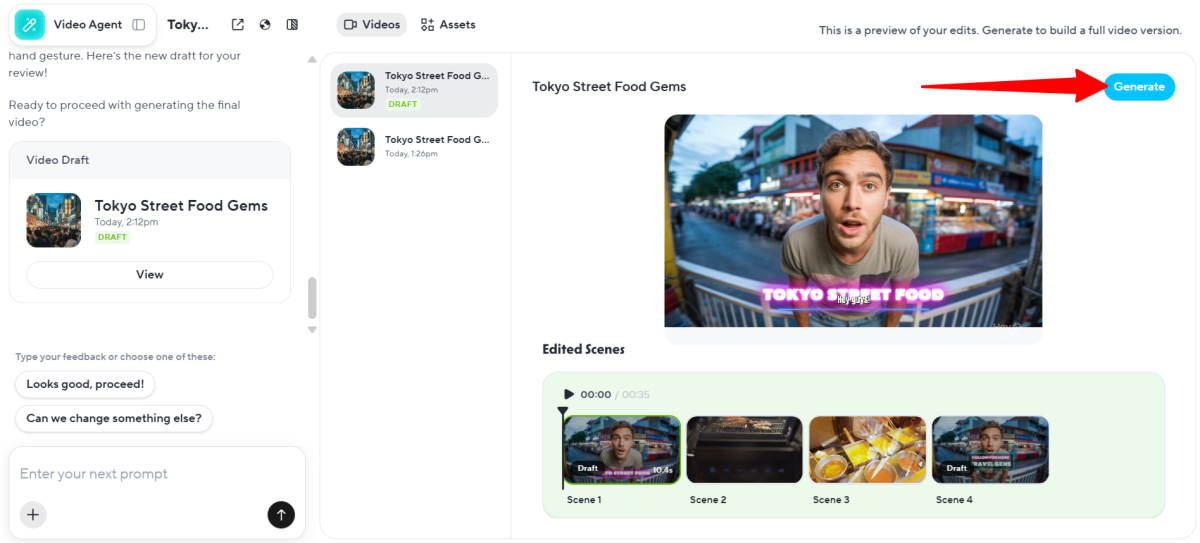
Once again,
HeyGen
got to work incorporating the requested edits. It generated a draft, so to actually see the edits in my video, I hit “Generate” on the top right.
A few minutes later, my edited video was ready:
HeyGen successfully kept the other scenes the same while removing the hand gestures in the last scene, as prompted.
Step 10: Make Edits in the AI Studio
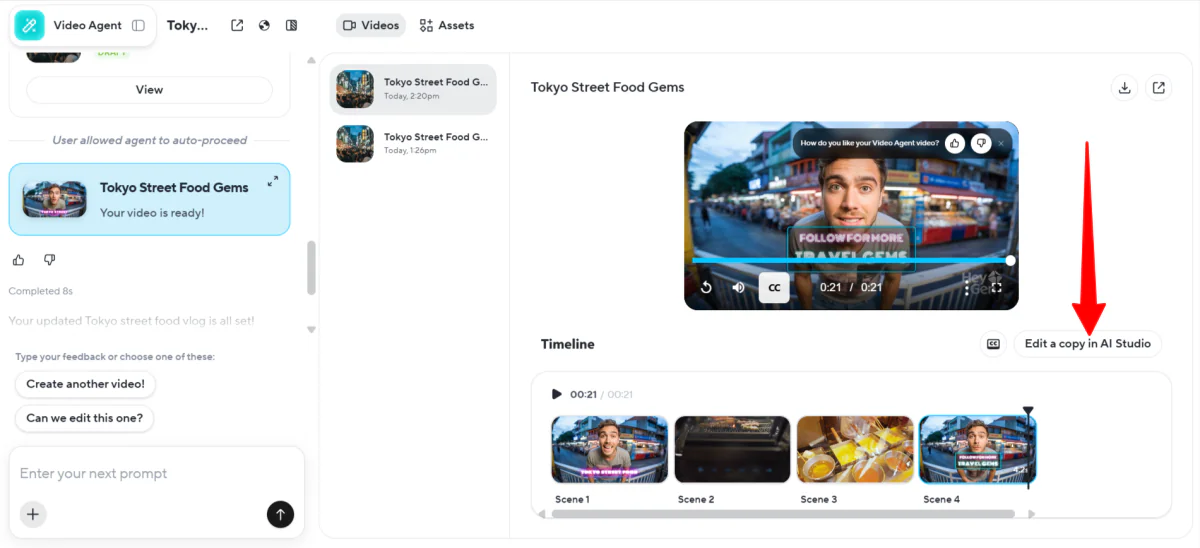
For deeper video customization, I selected “Edit a copy in AI Studio.”
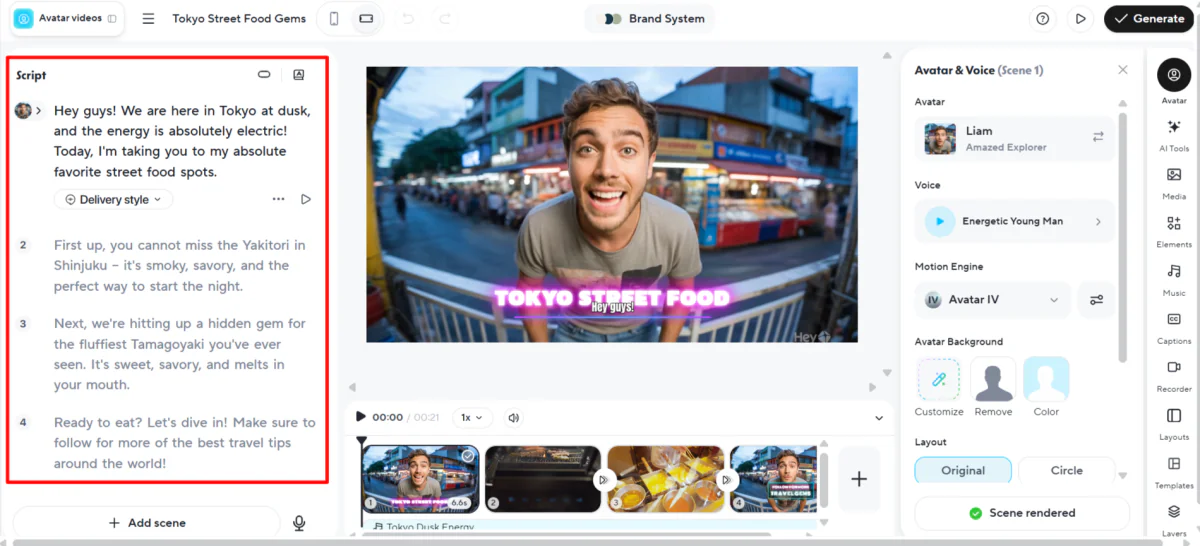
Within the AI Studio, editing couldn’t have been easier. I could makeect edits to the script on the left, which automatically trimmed the video without manually cutting each scene.
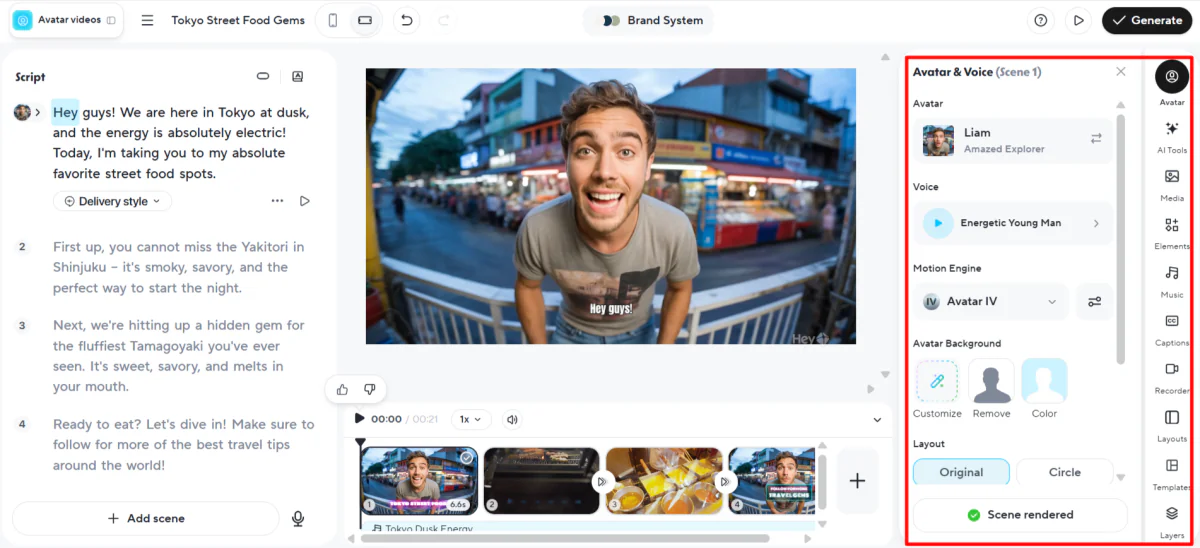
On the right were my tools for editing and adding elements and media:
Avatar: Change the avatar and voice.
AI Tools: Script writer, motion designer,
image generator
, video generator.
Media: Access to hundreds of images and videos.
Elements: Text, motion,
logos
, and shapes.
Music:
Background music
for more engagement.
Captions: Edit caption styles.
Recorder: Upload your own screen recordings or record within HeyGen.
Layouts: Change the layout.
Templates: Add a template.
Layers: Rearrange different layers, such as videos and captions.
I made a few changes to my video using these tools and found the drag-and-drop functionality easy to use.
Step 11: Turn Yourself into an AI Avatar
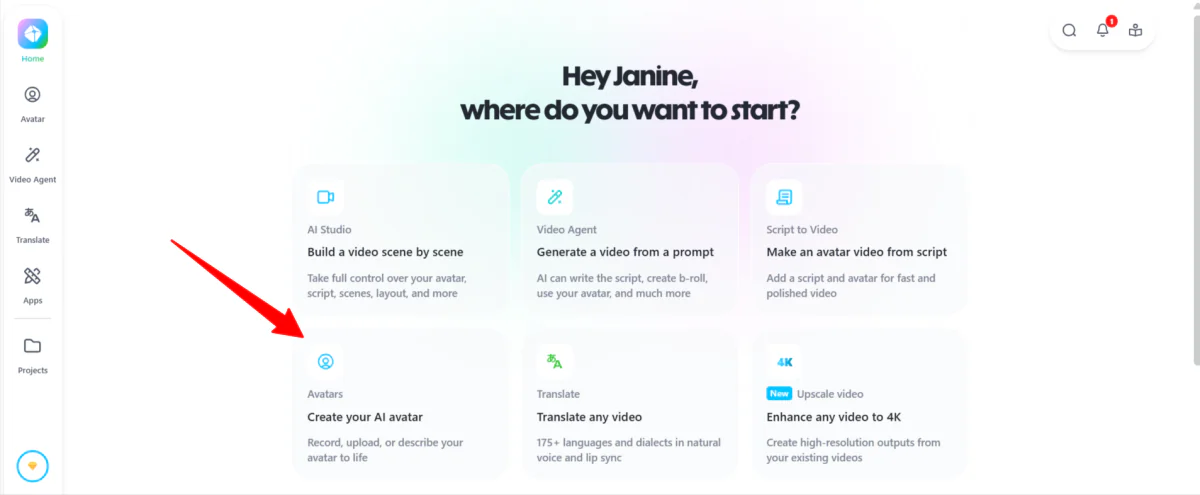
The last feature I wanted to try: cloning myself and making a video. Back on the homepage, I selected “Create Your AI Avatar.”
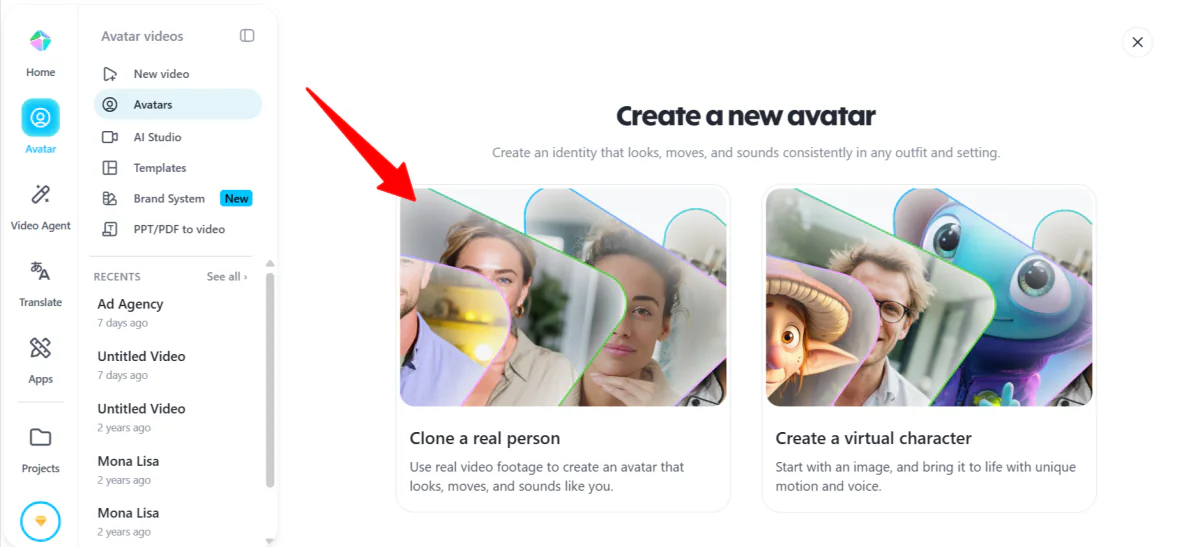
Next, I selected “Clone a real person.”
Step 12: Upload or Record Yourself
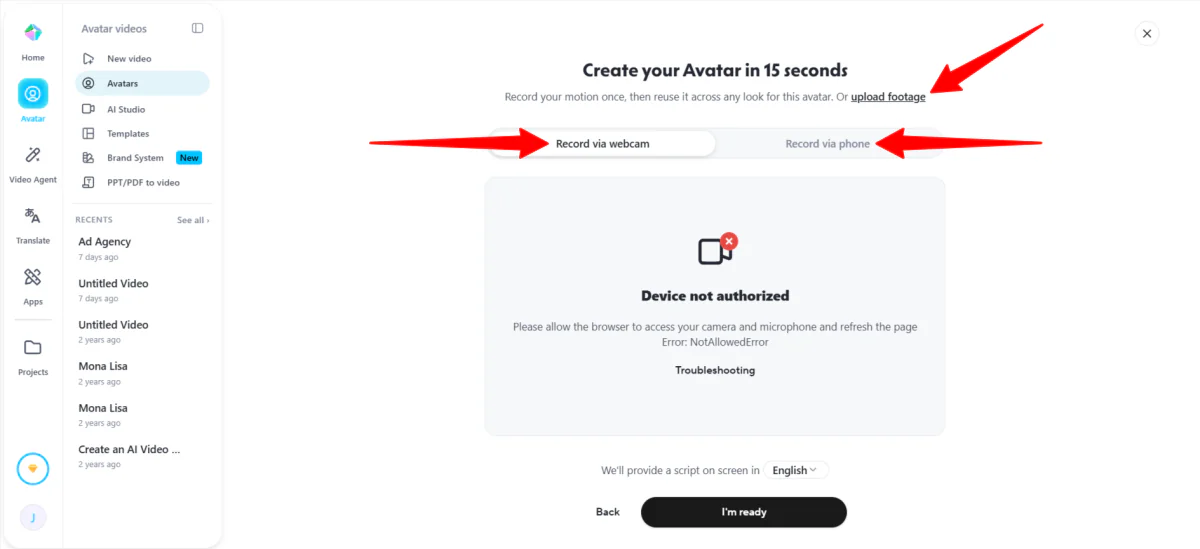
HeyGen
provides three ways to create a custom avatar: by recording via webcam or phone, or by uploading footage. I already had footage, so I uploaded a clip of myself, but go with the option that makes the most sense for you.
Step 13: Create Avatar
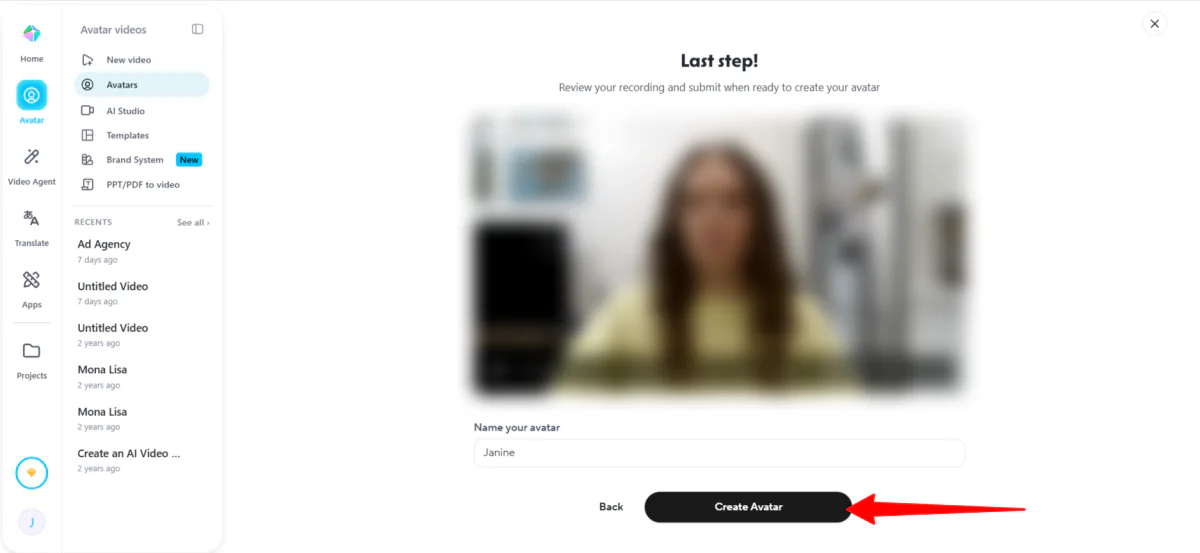
Once my clip was uploaded, I gave my avatar a name and hit “Create Avatar.”
Step 14: Use the Avatar in a Video
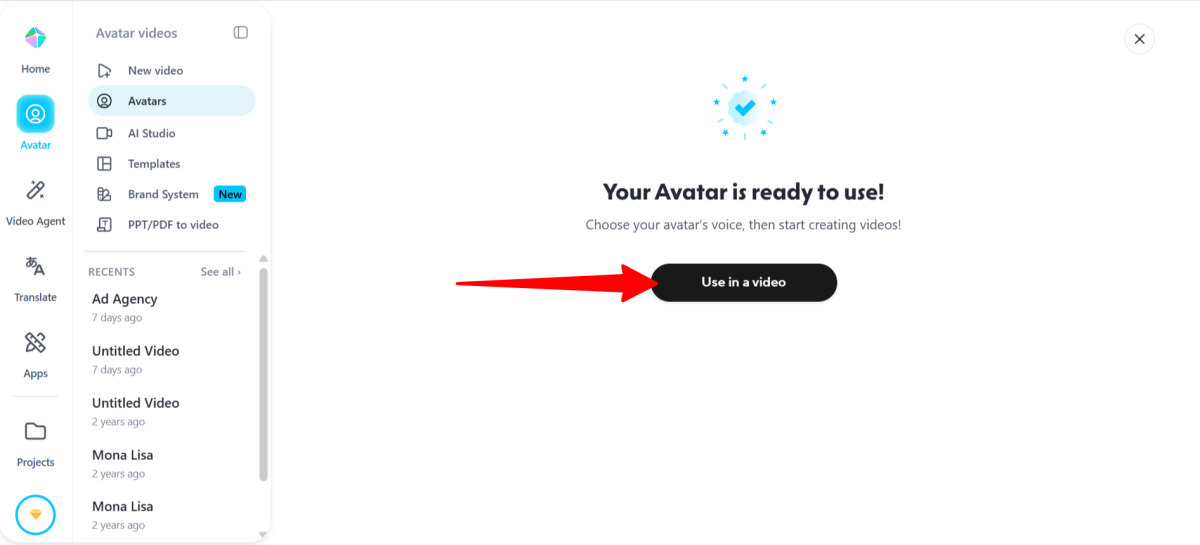
Immediately, my avatar was ready to use, so I hit “Use in a video.”
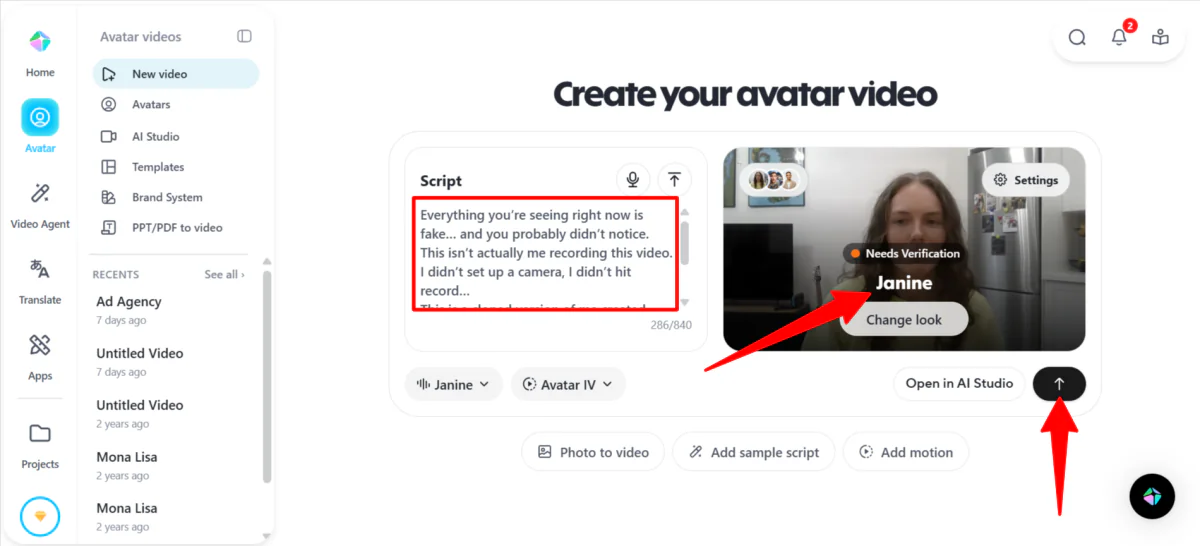
When creating a new video, I chose the cloned version of myself, added a script, and made sure the orientation was how I wanted. I then sent it to HeyGen.
After verifying my identity (you just record yourself saying a short script), HeyGen began generating my video. Here’s how it came out:
While it was pretty weird watching an AI clone of myself speaking words I’d never actually spoken or recorded,
HeyGen
did a great job capturing how my voice actually sounded, how I look, and my mannerisms.
Overall, HeyGen made it incredibly easy to go from a simple prompt to a professional AI video. The editing tools were easy to use, and the avatars were impressively realistic and closely matched my vision.
While the results were high-quality, some moments still felt slightly robotic. Also, the ability to clone myself raises important ethical considerations around realism and transparency.
Top 3 HeyGen Alternatives
Here are the best
HeyGen
alternatives I’ve tried:
Synthesys
The first
HeyGen
alternative I’d recommend is Synthesys. It’s essentially an all-in-one AI content suite. You get AI video generation with avatars, voiceovers in 140+ languages, over 600 voices, and a full
AI image generator
.
The voice generator impressed me right away. Type a script, pick a voice, and it sounds human.”
Both HeyGen and Synthesys are targeting the same audience: marketers, educators, content creators, and small business owners without a video team. And both of them do the same things really well (AI avatars, multilingual support, no camera required, no editing experience needed).
But they’re not the same tool, and the differences matter depending on what you’re trying to do.
HeyGen is where I’d send you if you want the cleanest, most polished video output with highly realistic lip-sync. And it connects with
ChatGPT
and Zapier, which opens up some workflow automations that Synthesys doesn’t quite match yet.
Meanwhile, Synthesys wins when you need more than just video. If you’re running a content operation and need voiceovers, videos, and images from a single dashboard without jumping between five different tools, Synthesys is built for that.
For a streamlined, realistic video experience with great integrations, choose HeyGen. For a broader AI content suite where voice, image, and video all live under one roof, choose Synthesys.
Read my
Synthesys Review
or visit
Synthesys
.
Deepbrain
The next
HeyGen
alternative I’d recommend is DeepBrain AI Studios, which I also tried.
What surprised me most was how many ways DeepBrain lets you create a video. You can start from a topic, a script, a PowerPoint, or even just a URL.
I tried all four methods, and the ChatGPT option was the standout. I chose a topic, and within minutes DeepBrain had written the script, built the video, and had it ready to export. I barely touched anything myself.
The URL-to-video feature was a little rougher. It didn’t pull as much content from the article as I expected and needed some cleanup. But the PowerPoint converter was useful, especially for educators or anyone repurposing
existing presentations
.
Both HeyGen and DeepBrain offer realistic avatars, multilingual support, and no-code workflows. But DeepBrain goes bigger with over 2,000 avatars, interactive training videos, SCORM support, and full end-to-end automation. HeyGen keeps things tighter, with a cleaner interface, stronger lip-sync, and better integrations.
For advanced video creation and interactive training at scale, choose DeepBrain. For a faster, seamless experience that anyone can pick up immediately, choose HeyGen.
Read my
DeepBrain AI Review
or visit
DeepBrain
.
Synthesia
The final
HeyGen
alternative I’d recommend is Synthesia, another AI video generator. Here’s how I got started: I signed up, picked the Starter plan, and was taken straight to the Synthesia studio, where they walked me through a quick tutorial to get started.
From there, I used the “Generate video with AI” feature, gave it a topic, picked a template, and within minutes had a full video with multiple scenes. I barely had to edit the script.
What impressed me most were the small details. You can add gestures (like eyebrow raises or head nods) at specific points in the script. The lip sync was accurate, the AI voice sounded natural, and I had access to 240+ avatars and 160+ languages.
For something I put together in a couple of minutes, it looked really good.
Both HeyGen and Synthesia offer AI video generation with realistic avatars, multilingual support, and no filming equipment required. They’re both solid choices for marketing, training, and
social media content
.
However, Synthesia stands out with enterprise features like real-time team collaboration, advanced analytics, strong security compliance (SOC2, GDPR), and seamless LMS integration. Meanwhile, HeyGen excels in ease of use and voice cloning
For enterprise-level scalability, collaboration, and compliance, choose Synthesia. For user-friendly video creation with more creative flexibility, choose HeyGen.
Read my
Synthesia Review
or visit
Synthesia
.
HeyGen Review: The Right Tool For You?
HeyGen
genuinely surprised me with how fast I could go from a simple idea to a high-quality AI video. The entire process felt effortless, the editing tools were easy to use, and the avatars looked impressively realistic (especially when I tested cloning myself).
But with that said, I couldn’t ignore the slightly robotic moments and the ethical gray area around AI avatars, which made me more mindful about how I’d actually use it.
Overall, HeyGen is worth it for speed, simplicity, and strong visual results without a production setup. But for deeper control, broader content tools, or enterprise-level features, you might want to consider one of these alternatives:
Synthesys
is best for creators and marketers who want an all-in-one AI content suite (video, voice, and images) without juggling multiple tools.
DeepBrain
is best for teams and educators who need advanced automation, training videos, and scalable content creation (especially from URLs, PPTs, or scripts).
Synthesia
is best for businesses and teams that need enterprise-level video production, collaboration, analytics, and compliance.
Thanks for reading my HeyGen review! I hope you found it helpful. Try their
free plan
, where you can generate three videos per month and see how you like it.
Frequently Asked Questions
Is HeyGen worth buying?
HeyGen
is worth buying for fast, realistic AI avatar videos for marketing, training, or sales without filming or editing skills. It’s great for teams or creators prioritizing high-quality output and integrations over broad content suites.
Is HeyGen a Chinese company?
HeyGen
, founded in 2020 by Chinese entrepreneurs, is now a US-based company headquartered in Los Angeles. It was originally called “Surreal” (then Movio) and moved its operations to the US while reducing Chinese investor stakes.
Is it safe to use HeyGen?
HeyGen
is a safe and legitimate AI video platform that follows
data privacy rules
and uses
safety protocols
to protect users.
How good is HeyGen translation?
HeyGen’s
video translation is fast and accurately clones the speaker’s voice and lip movements. It’s great for translating videos into multiple languages for marketing or content creation.


